How to Cancel Your Subscription in the CCO Academy
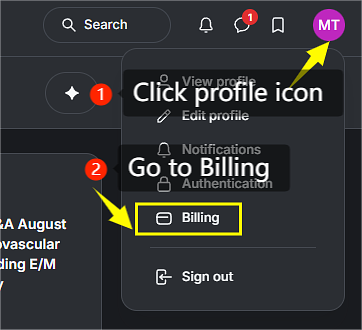
Step 1: Click Your Profile Icon
(See image—label 1: "Click profile icon")
Make sure you are logged into cco.academy.
In the top-right corner of the page, click your profile icon (showing your initials or avatar, e.g., "MT").
A dropdown menu will appear with several options.
Step 2: Go to Billing
(See image—label 2: "Go to Billing")
From the dropdown menu, click Billing (shown with a card/wallet icon).
This takes you directly to your personal billing page.
Step 3: Open the Subscriptions Tab
On the Billing page, make sure you are on the Subscriptions tab.
You will see a list of your current and past subscriptions.
Step 4: Click the Three-Dot (⋯) Menu
Find your active subscription in the list.
Click the More actions (three dots ⋯) icon next to it.
From the dropdown, select Cancel.
Step 5: Confirm the Cancellation
A confirmation prompt will appear.
Click Confirm cancelation to complete the process.
What Happens Next?
Your subscription will not be cut off immediately; you retain full access until the end of your current billing period.
After that date, your access to CCO Academy premium content will end.
Can't see the Cancel option?
Submit a cancellation request through the CCO Academy Help Desk.